Underwrite a DealUpdated Sep 3, 2026Investors underwriting multifamily deals
The Multifamily Underwrite tab takes a deal from in-place income to a full multi-year projection and exit. This guide explains how the workspace is organized and how to work through it — not every field, but the map that makes the fields make sense.
How the workspace is organized
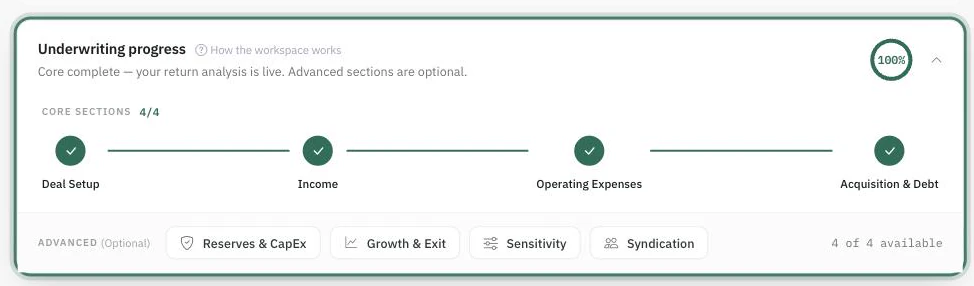
At the top, a progress card tracks your required inputs. Below it, the sections sit in two bands:
Core Underwriting — the four stages every deal needs, unlocked in order: Deal Setup (property details, valuation method, price), Income (rent roll, other income, vacancy/delinquency/concessions), Operating Expenses (line items, optional property-tax reassessment), and Acquisition & Debt (loan terms, closing costs).
Advanced Analysis — the deeper work: Reserves & CapEx, Growth & Exit Assumptions (rent growth, hold period, exit), Sensitivity Analysis, and Syndication (the investor waterfall). Advanced Analysis requires the advanced-underwriting capability on your plan; without it the band shows an upgrade card instead.
Each stage card shows its status — Complete, how many required inputs remain, or Optional — and a sticky bar at the bottom always points at your next step.
Four core sections carry the analysis; the advanced sections beneath them are optional.
The Live Analysis rail
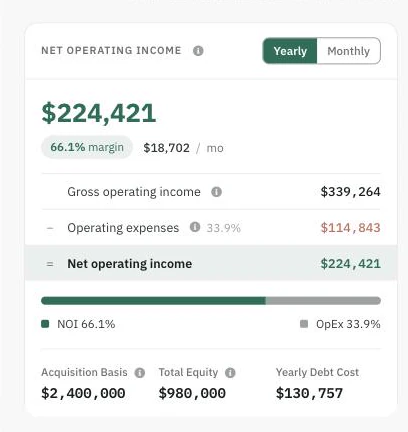
The Live Analysis rail recomputes as you type — no save step, no recalculate button.
To the right, the Live Analysis panel recalculates as you save — cash flow, returns, a DSCR gauge, and an "Against your targets" card that scores the deal against your own Buying Targets. This is also where the Maximum purchase price card lives, which turns your targets into a price ceiling. If a number looks wrong, it traces back to an assumption — the rail is how you find which one.
A working rhythm
Set up the deal — price (or cap-rate basis) and units unlock everything else.
Get income from actuals. Import the rent roll rather than typing it, then set other income and your vacancy assumptions.
Get expenses from actuals. Import the T12, then adjust to how you will operate the building.
Model the debt you can actually get — the loan terms move returns more than most inputs.
Then go deeper: reserves and planned capital work, growth and exit assumptions, and a sensitivity pass to see how fragile the returns are.
Conventions worth knowing before you present
NOI excludes the asset-management fee — the fee is deducted below NOI, so NOI is reported on a pre-management-fee basis. Compare like with like against sources that expense it.
Year 0 vs Year 1: in-place income reflects current occupancy; Year 1 onward uses your stabilized vacancy. A step between them is your assumption showing up, not an error.
Exit valuation follows your Exit NOI Basis setting — Trailing NOI values the sale on the final modeled year, while Forward NOI uses one additional forward-year NOI for the exit valuation only. Know which basis your audience expects.
Scenarios and the workspace
Every input you see belongs to the scenario selected in the bar above the workspace. Cloning a scenario before testing a what-if keeps your base case clean, and the compare view puts scenarios side by side. See Scenarios: Create, Compare & Manage.
Common mistakes to avoid
Underwriting the seller's pro forma. Start from actuals (rent roll, T12), then apply your own assumptions in the projections.
Leaving the exit cap at the going-in level. Test an exit-cap cushion in Sensitivity either way.
One scenario only. Keep a conservative case next to the base case — that's what scenarios are for.